AI Image Upscaler
Upscale low-resolution photos to crisp HD without losing quality.
AI Tool
AI Upscale
Upload your photo
Drag & drop, or press Ctrl/⌘+V
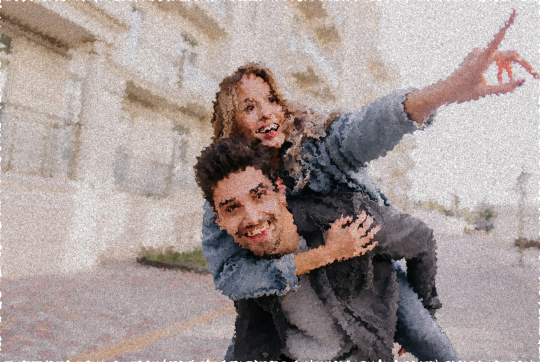
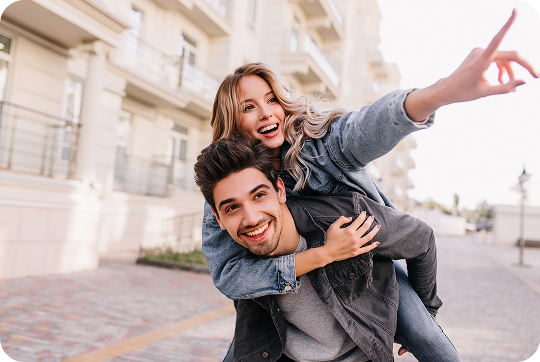
Free to try · go Unlimited for unlimited edits · no card required
Magical Studio AI’s image upscaler increases the resolution of small or low-quality images while adding sharp detail, turning pixelated, low-res pictures into crisp, high-definition photos. Use this AI image editor to increase resolution and get clean HD results ready for printing, posting or zooming in, with no quality loss or blur. It works as an online photo editor in your browser, so you can upscale images and edit photos with AI in seconds, then download a bigger, sharper version instantly.
Why use the AI image upscaler
Small images break the moment you enlarge them, and this image upscaler fixes that. Use it to increase resolution for printing photos as posters, canvases or large frames, and to make e-commerce and product images crisp on big screens. Designers upscale logos, thumbnails and assets that were saved too small, while sellers turn low-res supplier photos into clean HD listings. It is also great for enlarging old, tiny or downscaled pictures, AI-generated art and game or anime stills so they stay sharp when you zoom in. Because it runs online with nothing to install, you can upscale images to HD whenever you need a bigger, sharper file.
Tips for the best results
Upscaling works best when the original is reasonably clean, so remove heavy noise or compression artifacts before you increase resolution where possible. Start with the highest-quality version of the image you have, a sharp small photo upscales far better than a blurry one. Choose an upscale amount that matches your goal: moderate increases for crisp HD on screen, larger ones for big prints. For the cleanest results, avoid stacking filters first, since the upscaler adds detail more accurately on an untouched image.
How to use AI Upscale
Upload your low-resolution photo.
The AI upscales it and adds detail.
Download your high-resolution image.
Frequently asked questions
The AI increases resolution while keeping edges sharp and adding realistic detail, so results stay crisp instead of blurry.